Google Maps Platform: describe the app, Gemini builds
Google Maps Platform is now in AI Studio, giving our location-based app ideas a direct route into Gemini’s building environment.
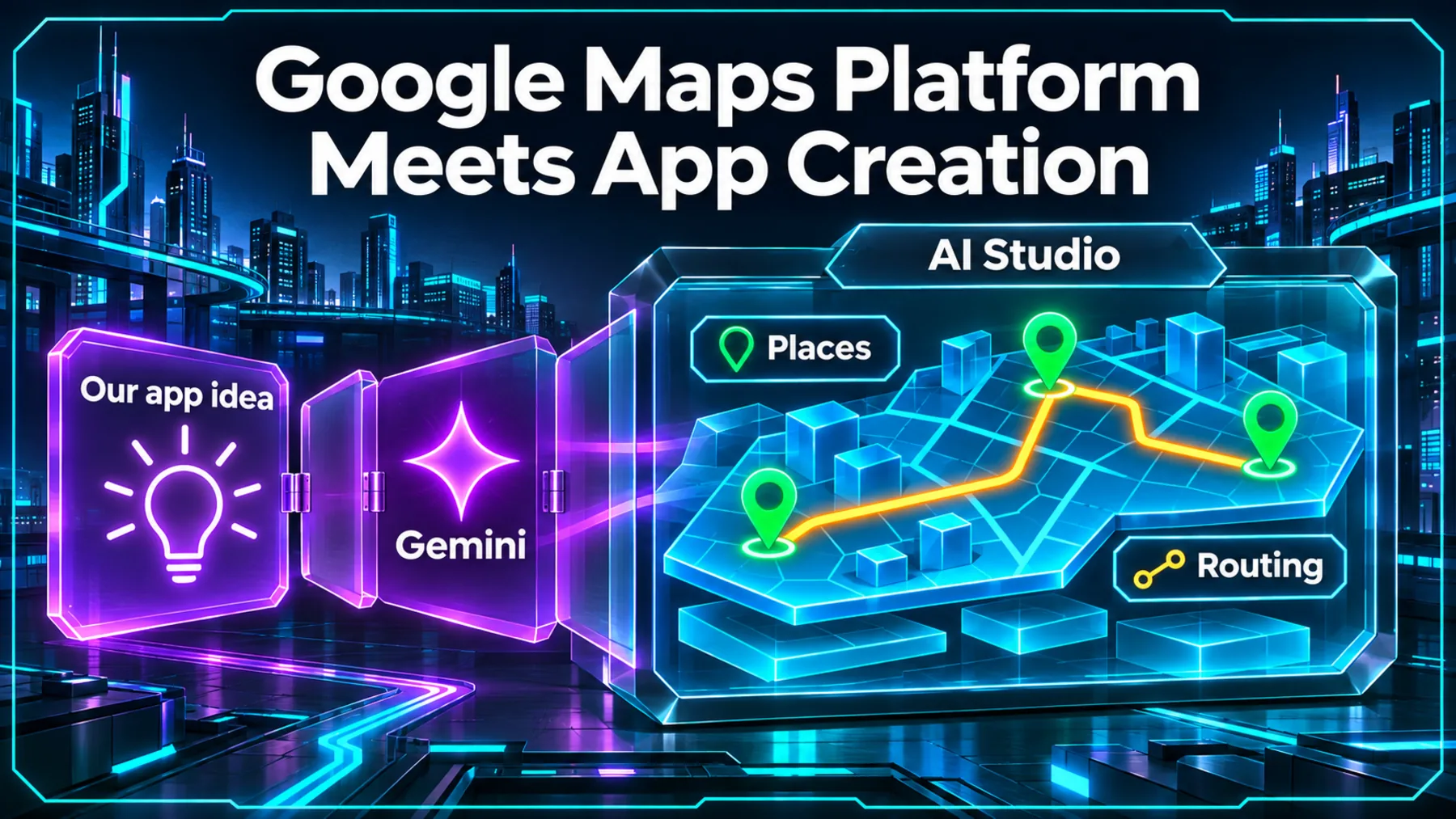
This starts with an app we want to create, rather than a destination we want to reach. In AI Studio, we can describe a Maps app idea and have Gemini build it, with capabilities including places, weather and routing.
Our app idea becomes the starting point
We can begin with what the map should help us do.
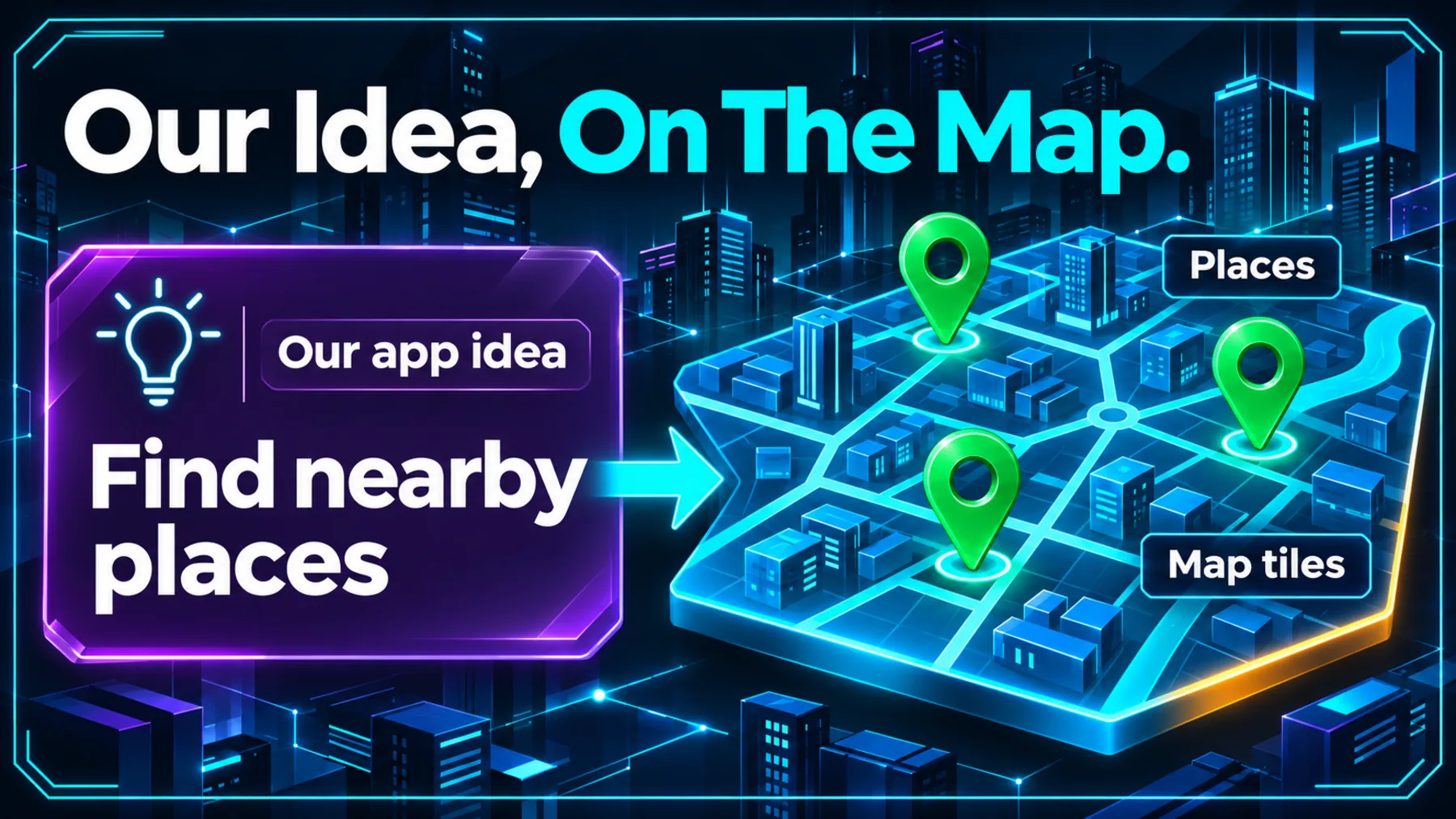
Imagine we want an app that helps us find nearby places. We can describe that purpose in AI Studio: the area we want to explore, the places we care about and how we want to see them on a map. That gives Gemini a concrete app to build, with Google Maps Platform available in the same environment.
The map is only the starting point
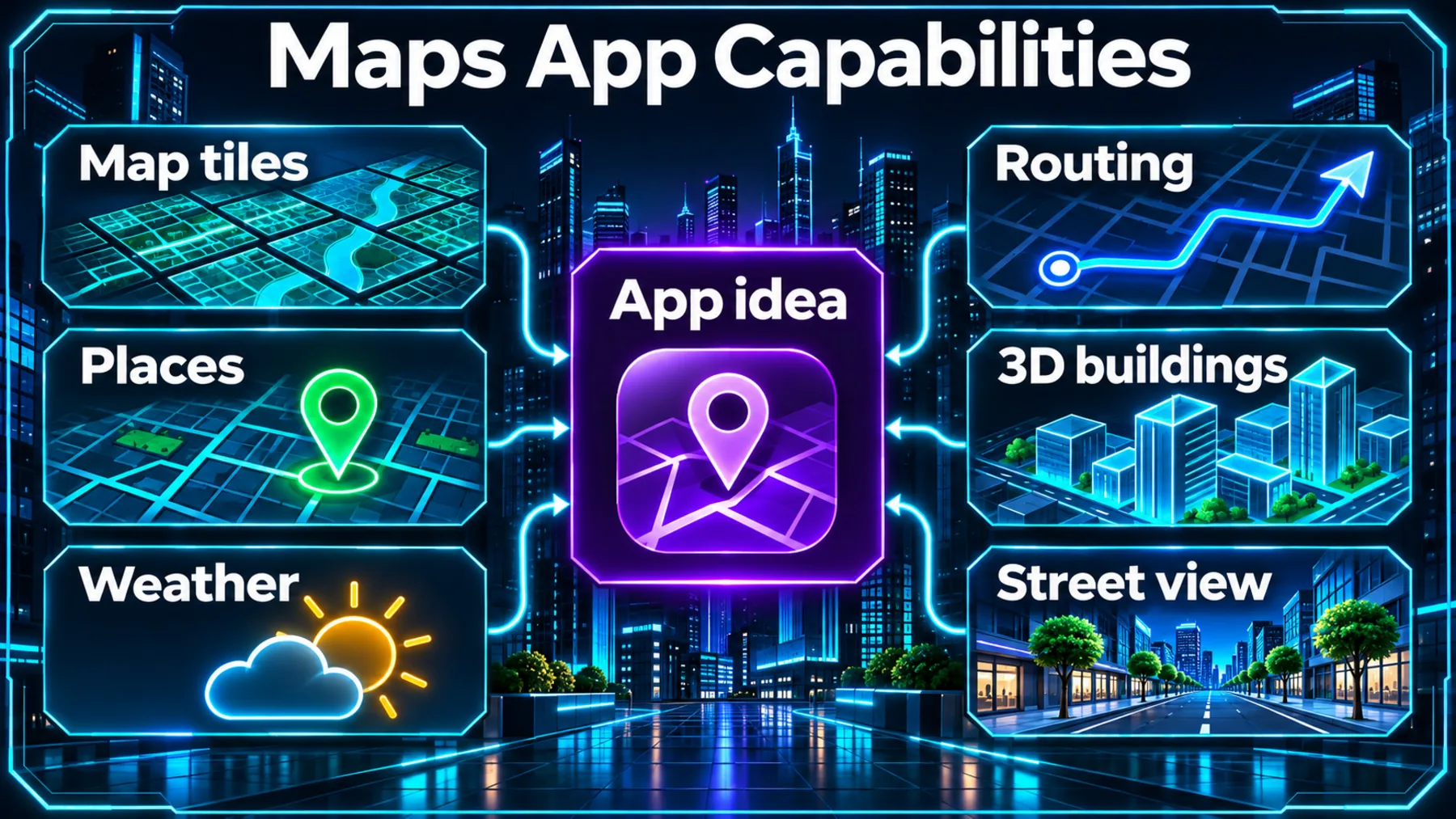
Google names map tiles, places, weather, routing, 3D buildings and street view.
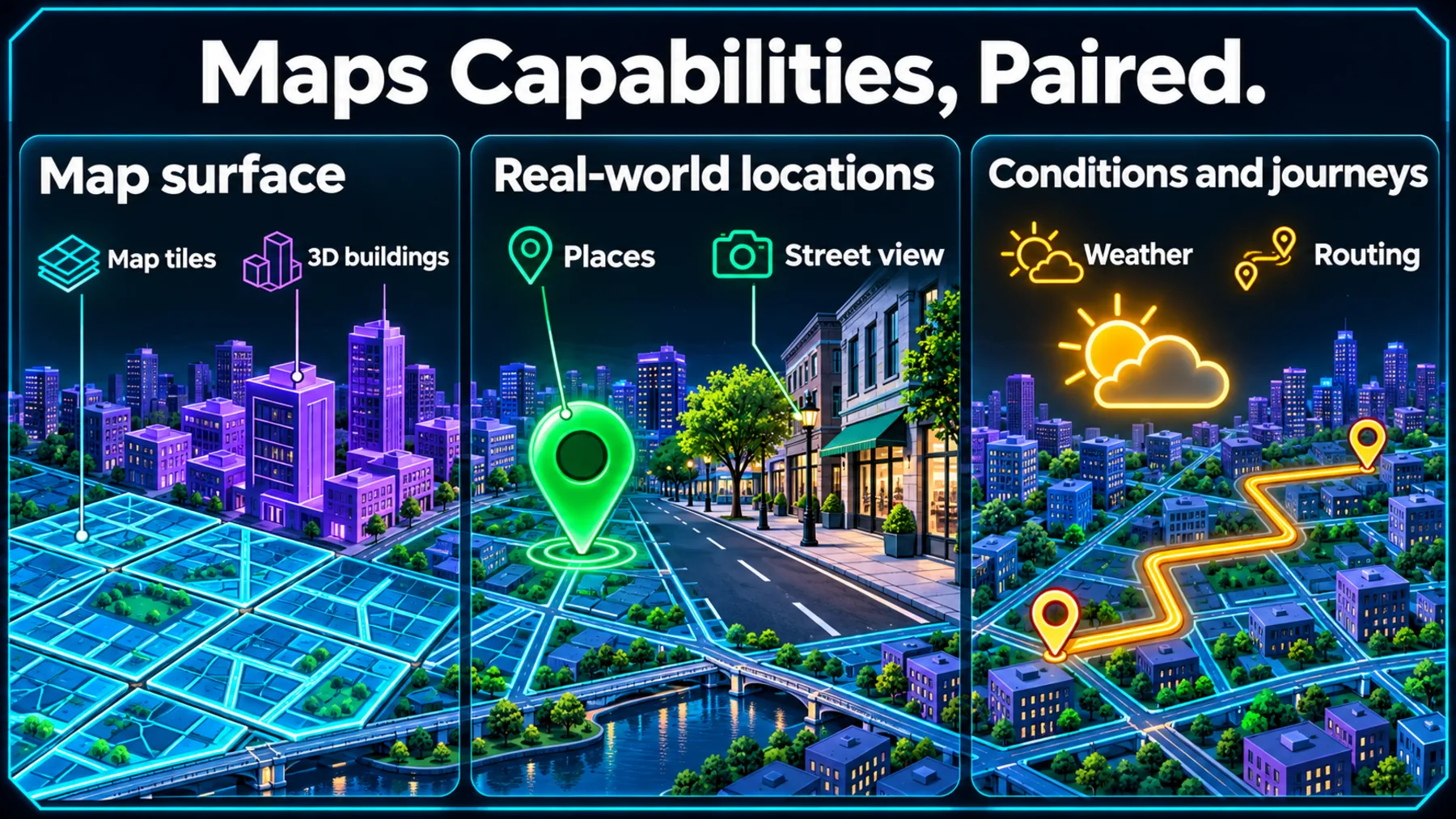
Map tiles provide the map surface. Places represent real-world locations, while routing gives us paths between them. For our nearby-places idea, those capabilities give the request a clear shape: show an area, find locations and connect them.
Weather, 3D buildings and street view broaden the possibilities. We can think about the six capabilities in practical groups: the map surface and buildings, places and their street-level surroundings, or weather and routes. The choice starts with what our app needs to do.
Describe the idea. Gemini does the building.
Google AI Studio puts description-based app creation at the centre of the update.
The key change is how we begin a Maps app. Google’s announcement connects an idea expressed in words to Gemini doing the building, alongside one-click setup and the named Maps capabilities.
Maps appears in the builder
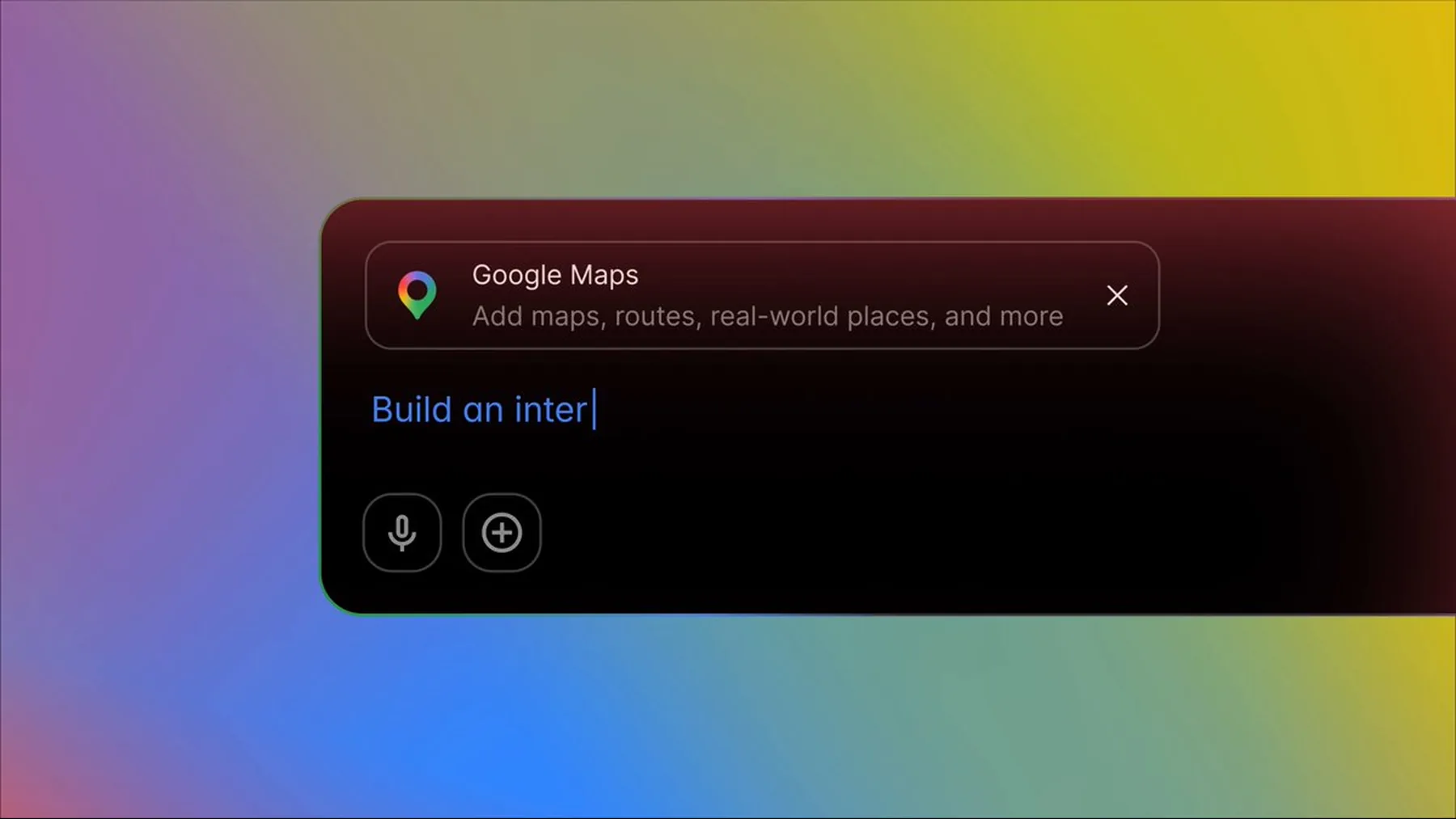
The announcement’s video poster shows a Google Maps tool card and a prompt-entry surface.
The Google Maps card sits within the building interface, alongside the space for entering a request. It gives the announcement a concrete setting: Maps is part of the environment where we describe what we want to make.
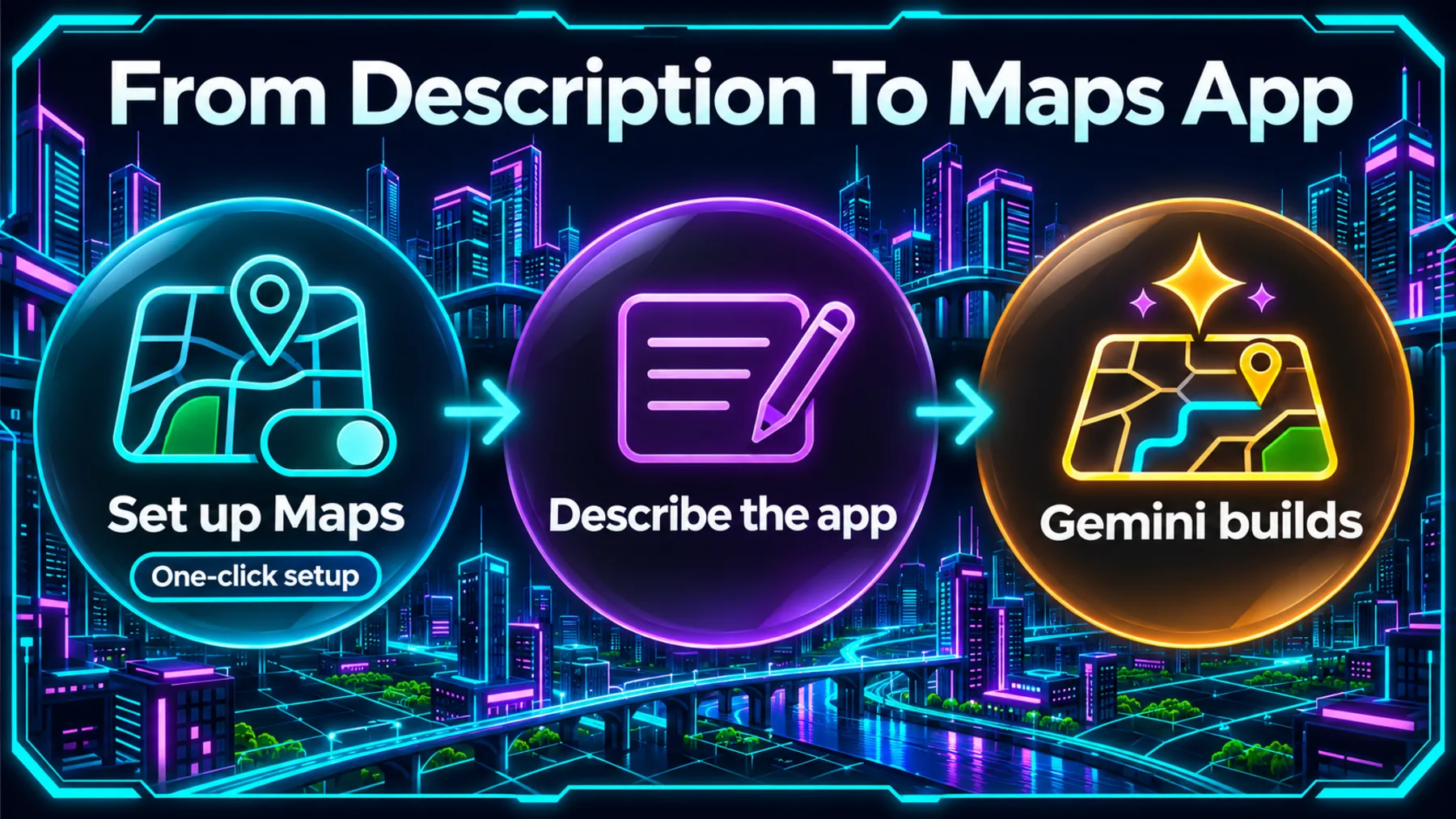
Set up Maps. Describe the app.
One-click setup gets Maps ready; the app description gives Gemini its task.
Google lists one-click setup as part of the update. From there, we describe the Maps app we want and Gemini builds from that request. The sequence is straightforward: set up Maps, describe the app, then let Gemini do the building.
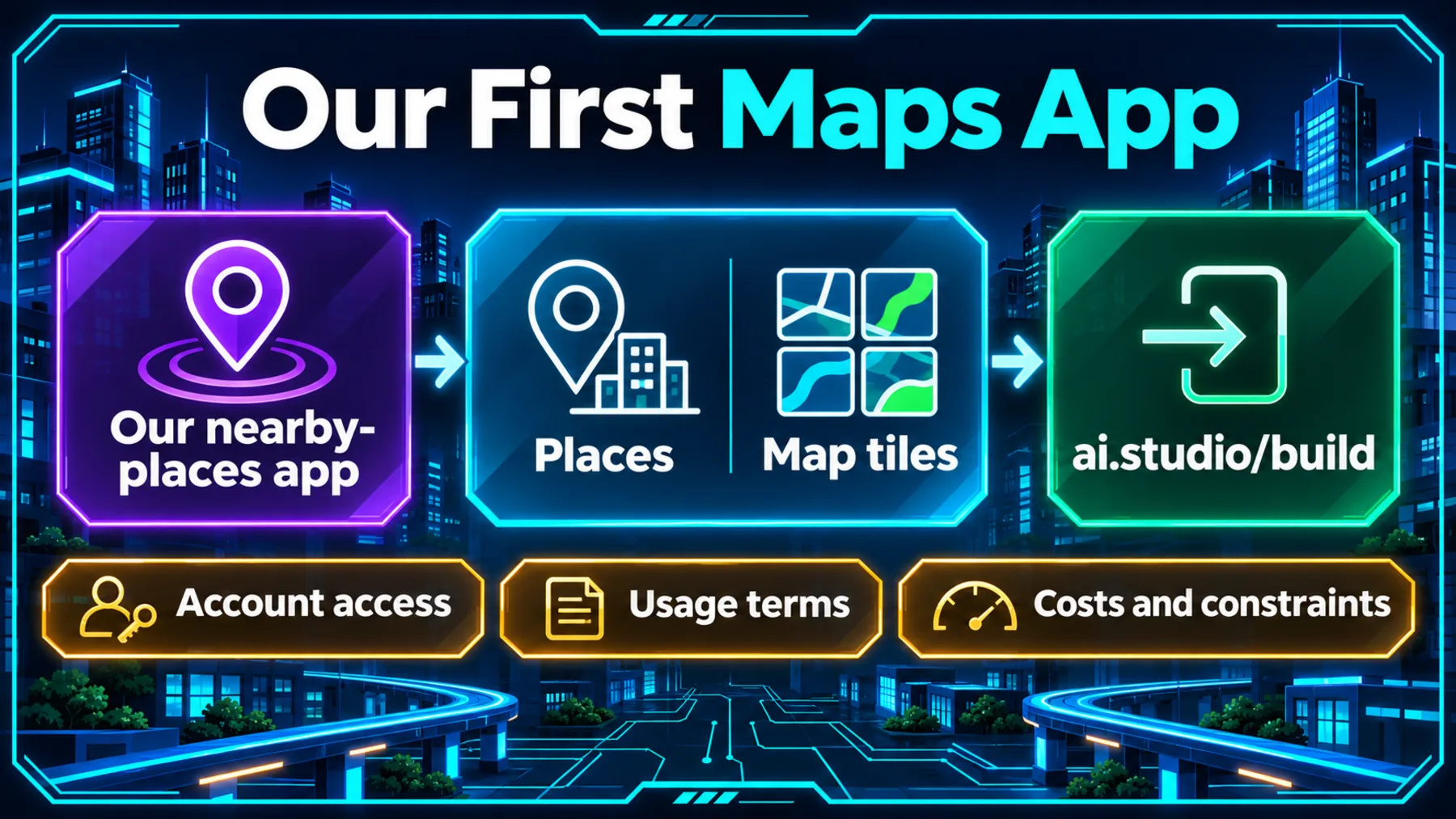
Start with one useful Maps app
A nearby-places idea gives us a clear purpose without asking for every capability at once.
The published starting point is ai.studio/build. For a first request, we could describe an app that shows cafés and parks in an area we choose, then connects selected places with a route. That keeps the purpose specific and draws on map tiles, places and routing.
Before relying on the app, we should check our account’s access, the applicable usage terms and costs, and any constraints on the capabilities we need.
Account access
Check that Maps building is available in the account we intend to use.
Task scope
Choose the Maps capabilities our first app actually needs.
Usage and costs
Review the applicable terms, charges and limits before committing to regular use.
A useful app starts with a clear description
Maps capabilities give us the ingredients; our request explains what to make with them.
Google Maps Platform in AI Studio gives us a way to turn a location-based idea into a Gemini build request. The useful next move is to make that idea specific: what we want to find, what the map should show and whether we need routes between places. The prompt below puts that into a focused nearby-places app request.
Describe what the map should help us do, then choose the capabilities that serve that purpose.
Altior
Build a nearby-places app
Build a nearby-places app with Google Maps Platform. Start with a map centred on London and let us change the area we want to explore. Use map tiles for the map surface and places to show cafés and parks in that area. Let us select a place to see its name and location, then choose two places and request a route between them. Keep the layout simple, with the map beside the place details. Use real place information where available; do not invent locations, routes or results. If a requested capability needs setup or is unavailable, explain what is needed rather than simulating a working result. Keep this first version focused on finding places and seeing how they connect.Ready to copy
Take one Maps app idea into AI Studio
The shift is from describing a destination to describing an app. Open https://ai.studio/build with one location-based idea in mind.
Try the promptKeep in view
- Access in the account we plan to use.
- Applicable usage terms, costs and limits.
- The fit between our app idea and the named Maps capabilities.